How to Organize Digital Files and Documents for Remote Work
Working remotely often means handling many digital files every day. You may need to manage documents, spreadsheets, images, invoices, project reports, customer information, and other important materials.
Without a proper organization system, finding the right file can become frustrating. You might save multiple versions of the same document, forget where an important attachment is stored, or accidentally share the wrong file.
A well-organized digital workspace makes it easier to locate information, manage projects, and work with clients or team members.
At GigBD.com, we encourage online workers to develop practical digital skills that support professional and organized remote work. In this guide, you will learn how to organize your digital files and documents step by step.
1. Create a Simple Folder Structure
The first step toward organizing digital files is creating a clear folder structure.
Instead of saving everything in one location, divide your files into categories based on their purpose.
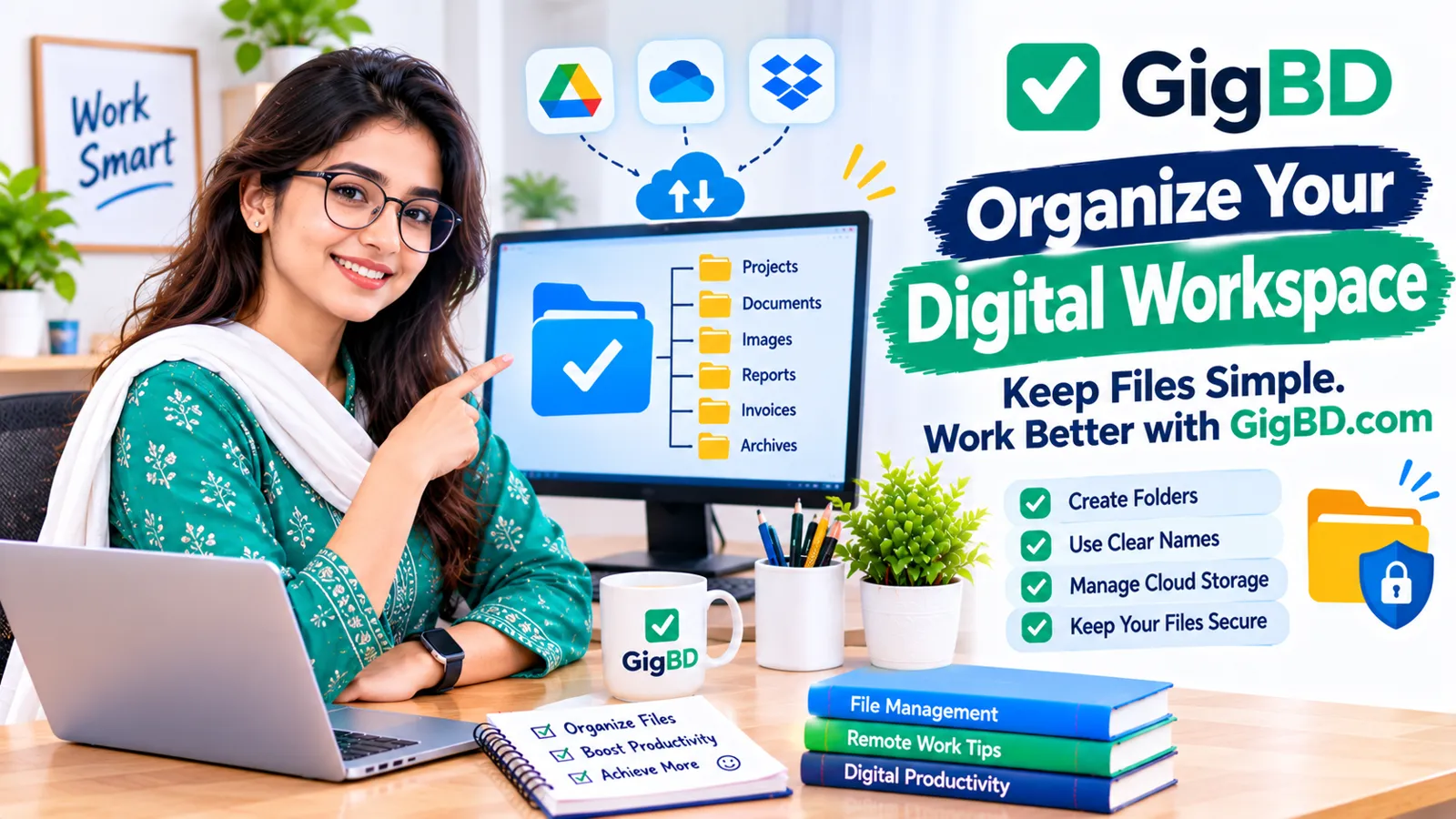
For example, you can create a main folder called "Remote Work" and organize it like this:
Remote Work
Client Projects
Documents
Images and Graphics
Reports
Invoices
Learning Materials
Completed Projects
You can create additional folders inside these categories when necessary.
If you work with multiple clients, create a separate folder for each client. This helps keep their documents and project materials separate.
Avoid creating too many unnecessary folders. Your structure should be simple enough to understand and easy to maintain.
2. Use Clear and Consistent File Names
A file name should help you understand what a document contains without opening it.
Names such as "Document1", "New File", or "Final Version 2" are not very helpful when you have hundreds of files.
Instead, use descriptive names that identify the content.
For example:
client-project-proposal.docxmonthly-work-report.xlsxsocial-media-content-plan.pdfwebsite-design-feedback.docxproject-invoice-2026-11.pdf
You can also include dates in file names when they are relevant.
A useful format is:
YYYY-MM-DD-project-name-document-type
For example:
2026-11-02-website-project-report.pdf
Using the same naming style consistently makes files easier to search and sort.
3. Organize Files by Project or Client
If you work with several clients or projects, keeping their materials separate is important.
Create an individual folder for each project and include only the files related to that work.
A project folder might contain:
Project instructions.
Client-provided documents.
Research materials.
Working drafts.
Final deliverables.
Feedback and revisions.
For example:
Client A
Project Brief
Research
Drafts
Final Files
Feedback
This structure makes it easier to understand the progress of each project.
It also reduces the risk of sending one client's document to another client by mistake.
For freelancers exploring opportunities through GigBD.com, developing this habit can help when managing different assignments and keeping completed work organized.
4. Separate Drafts From Final Documents
One common digital organization problem is having several versions of the same document without knowing which one is final.
Create separate folders for drafts and completed files.
For example:
Drafts
Under Review
Final
When a document is approved, move the correct version into the Final folder.
You can also use version numbers when necessary:
project-report-v1.docxproject-report-v2.docxproject-report-final.docx
Avoid using several files named "final", "final-new", and "final-latest". This creates confusion.
For important projects, keep a short record of major changes so you can identify which version was approved.
5. Use Cloud Storage Carefully
Cloud storage allows you to access files from different devices and share documents with other people.
Popular options include Google Drive, Microsoft OneDrive, and Dropbox.
These services offer different storage plans and features, so choose one that suits your requirements.
When using cloud storage:
Create folders with clear names.
Upload files to the correct locations.
Review sharing permissions.
Avoid making private documents publicly accessible.
Remove unnecessary duplicate files.
Check that important files have uploaded successfully.
Cloud storage can make remote collaboration easier, but it should not replace good security practices.
Never assume that every uploaded file is automatically private. Review the access settings before sharing a document.
6. Keep Important Documents Easy to Find
Some documents are used more frequently than others.
You may regularly need project instructions, contact information, templates, invoices, or important reference files.
Keep frequently used documents in clearly labeled folders or use your operating system's shortcut and favorite features.
For example, you could create a folder named "Quick Access" containing shortcuts to frequently used work locations.
Avoid placing too many unrelated documents in this folder. The goal is to make important materials easier to reach without creating another disorganized location.
7. Create a Consistent Document Format
Using consistent formatting makes documents easier to read and maintain.
For work-related documents, choose a simple structure with clear headings, readable fonts, and organized sections.
For example, a project report might include:
Project name.
Date.
Summary.
Work completed.
Pending tasks.
Important notes.
Next steps.
For spreadsheets, use descriptive column headings and consistent date formats.
For presentations, maintain consistent fonts, spacing, and visual styles.
A consistent document format can also make it easier for clients and coworkers to understand your work.
8. Remove Unnecessary Files and Duplicates
Over time, digital storage can become filled with temporary downloads, duplicate images, outdated documents, and files you no longer need.
Review your folders periodically.
Look for:
Duplicate documents.
Old downloads.
Unused screenshots.
Outdated project drafts.
Temporary files.
Unnecessary exported copies.
Before deleting anything, make sure it is no longer needed.
If a file belongs to a client or contains important business information, follow the relevant retention and deletion instructions rather than removing it without permission.
A regular cleanup routine can keep your digital workspace manageable.
9. Protect Important Files With Backups
Losing important files can interrupt your work and create unnecessary problems.
Backups provide another copy of important information in case a device is damaged, lost, or affected by a technical problem.
You can use an appropriate combination of:
Cloud backups.
External storage devices.
Automatic backup features.
Separate copies of important project documents.
For important files, avoid keeping the only copy on one computer or USB drive.
Check your backup settings periodically and make sure you can actually restore the files when needed.
A backup that has never been tested may not be useful when you need it most.
10. Use Search Tools and File Filters
You do not always need to browse through every folder to find a document.
Most computers and cloud storage services provide search tools that can help locate files by name or other available information.
To make searching easier:
Use descriptive file names.
Include relevant keywords.
Add dates when useful.
Use file type filters when available.
Keep project folders organized.
Avoid saving several unrelated files with identical names.
For example, searching for "November project report" is more useful than searching for "report" when your computer contains many reports.
Some file management systems also allow you to sort by date, file type, size, or modification time.
11. Manage Downloads and Email Attachments
Downloads and email attachments can quickly become a source of clutter.
Instead of leaving every downloaded file in the default Downloads folder, move important documents to their appropriate project folders.
When receiving an email attachment:
Check who sent the file.
Confirm that the attachment is expected.
Use appropriate security precautions before opening it.
Rename the file if necessary.
Save it in the correct folder.
Remove unnecessary temporary copies when appropriate.
Be particularly careful with unexpected attachments or files from unknown senders.
Do not open suspicious files simply because they appear to be related to a work opportunity.
12. Review File Sharing Permissions
When working remotely, you may need to share documents with clients, coworkers, or project partners.
Before sending a file or sharing a cloud link, review who can access it.
Check whether the document is:
Private to your account.
Shared with specific people.
Accessible to anyone with the link.
Available for viewing, commenting, or editing.
Use the minimum access required for the task.
For example, if someone only needs to review a document, they may not need permission to edit it.
After a project is completed, review access permissions and remove access that is no longer necessary, following the client's instructions.
13. Build a Daily Digital Organization Habit
Keeping files organized does not have to take a long time.
A short daily routine can prevent clutter from building up.
At the end of your workday:
Move new files into the correct folders.
Rename important documents.
Separate drafts from final versions.
Review unfinished project materials.
Check important downloads.
Save relevant notes and instructions.
Confirm that important files are backed up when appropriate.
You can also schedule a more detailed cleanup once a week or month.
The most important thing is consistency. A simple system that you maintain regularly is more useful than a complicated system that you stop using.
14. Choose Tools That Match Your Workflow
Different types of remote work require different file management tools.
For example:
Google Drive: Useful for storing and sharing documents online.
Microsoft OneDrive: Useful for file storage and integration with Microsoft applications.
Dropbox: Provides cloud storage and file-sharing features.
Windows File Explorer: Helps organize files and folders directly on a Windows computer.
macOS Finder: Provides file and folder management on Mac computers.
You do not need to install every available application. Start with the tools you already have and learn their basic features before adding more services.
For online workers using GigBD.com or other platforms, a simple and reliable file management system can make everyday tasks easier to handle.
Digital File Organization Checklist
Use this checklist to review your digital workspace:
Create a clear folder structure.
Use descriptive file names.
Organize documents by project or client.
Separate drafts from final versions.
Keep frequently used files accessible.
Review cloud storage permissions.
Remove unnecessary duplicates.
Back up important documents.
Organize downloads and email attachments.
Check file-sharing permissions.
Review folders regularly.
You can start with a few improvements and gradually build a system that fits your workflow.
Final Thoughts
Organizing digital files and documents is a valuable skill for freelancers, virtual assistants, remote employees, and anyone who works online.
A clear folder structure, consistent file names, regular cleanup, secure sharing, and reliable backups can help you manage information more effectively.
You do not need complicated software to get started. Begin with a simple system, use it consistently, and improve it as your workload grows.
At GigBD.com, we encourage online workers to develop practical habits that support organized and responsible digital work. Whether you are managing client projects, completing online tasks, or learning new skills, keeping your digital workspace organized can make your work easier to manage.
Disclaimer: Always follow your client's file-handling, privacy, backup, and data-retention instructions when managing business documents.